KVMFlow docs
Setup guide
Set it up once, then switch with one button.
1. Connect devices
- Connect the keyboard and mouse to the USB switch.
- Connect the switch’s two upstream ports to the two computers.
- Connect each monitor’s video inputs to both computers.
- Enable DDC/CI in the monitor menu and confirm that you can manually display a picture from either computer.
2. Run the app on both computers
Open KVMFlow on macOS and Windows. Switch the USB devices and monitor picture to the computer you are configuring before reading monitor inputs.
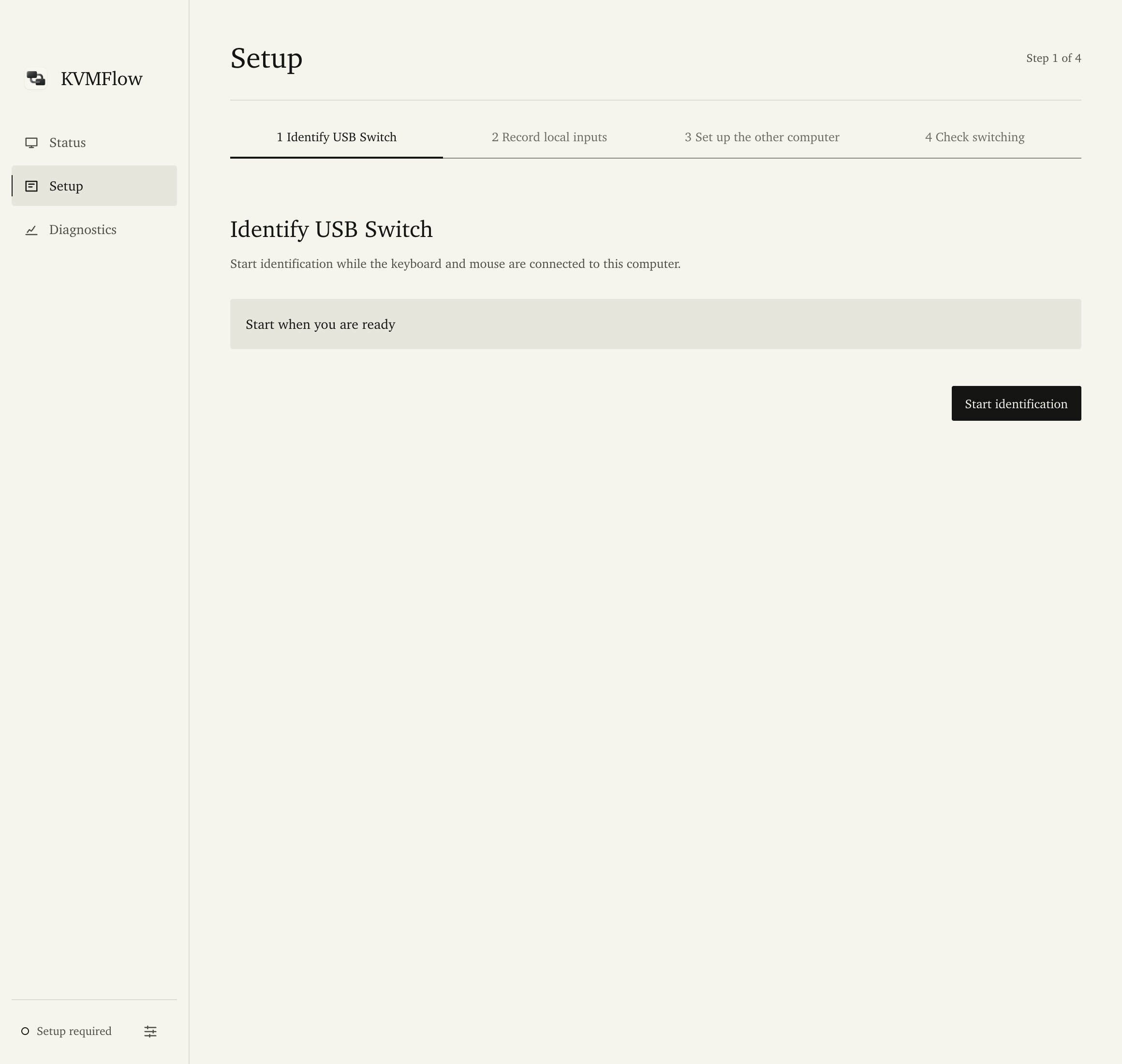
3. Identify the USB switch
Open Setup, start identification as instructed, and operate the USB switch to identify its device group. Do not unplug the mouse or keyboard instead of pressing the switch button.
If multiple docks or hubs are connected, check the identification result before recording monitor inputs.
4. Record both computers’ input values
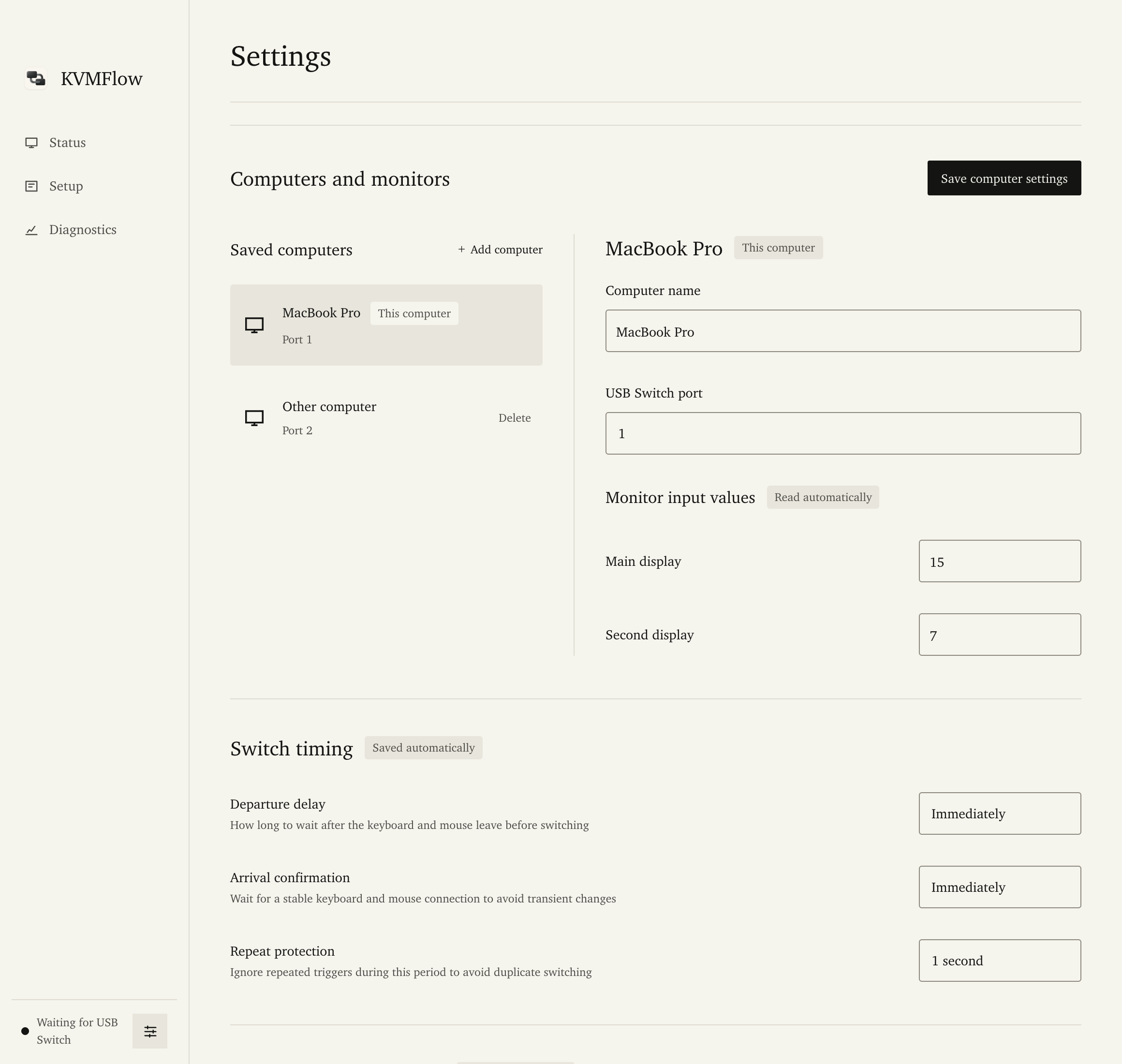
- While the local computer’s picture is visible, record the raw input value read from each monitor.
- Switch to the other computer and read and record its input values there.
- Enter the other computer’s values for each matching monitor. Do not copy example values or swap the two computers’ values.
5. Save computer configuration
Under Computers and monitors in Settings, check computer names, USB switch ports and monitor input values, then choose Save computer configuration.
Departure delay, arrival confirmation and repeat protection are saved automatically when changed.
6. Switch during everyday use
Keep KVMFlow running on both computers and press the USB switch’s physical button. Enable launch at login in Settings if needed. Reopen a closed window from the menu bar or system tray.
During your first check, test both switching directions and the actual picture on every monitor. If a direction leaves a screen black, follow Troubleshooting.