KVMFlow docs
Troubleshooting
Check connections, input mappings and black screens.
Keyboard and mouse switch, but the picture does not
- Confirm that KVMFlow is running on both computers and monitoring is not paused.
- Check that setup is complete and the USB switch’s device group was identified correctly.
- Check the computer port order and each monitor’s local and other-computer input values.
- Check switching timing settings for any delay you have configured.
The main monitor works, but another stays black
Check each monitor separately. Verify the secondary monitor’s input values and video cables, then confirm the other computer has enabled that display.
- Open the secondary monitor’s OSD menu and check that the input matches the target computer.
- If the input is wrong, select the target input manually to check whether that video connection can display a picture.
- If the input is right but the screen stays black, check extended-display settings, sleep state and video connections on the target computer.
- Note whether opening the OSD restores the picture or the monitor later switches back. Include these observations in your report.
A monitor is not detected
Manually switch the monitor to the local computer’s input. Confirm it appears in the operating system’s display settings, then retry monitor detection during app setup.
In your report, say whether the monitor appears in system display settings and whether it has a picture.
Unplugging the mouse causes an unexpected switch
Do not identify a single mouse receiver as the entire USB switch. Note any connected hubs and whether other devices or upstream cables were unplugged, then export diagnostic records and report the issue.
What to include in a report
- The app version and macOS or Windows version.
- USB switch, monitor and adapter models, plus how they are connected.
- The switching direction, such as Windows → Mac.
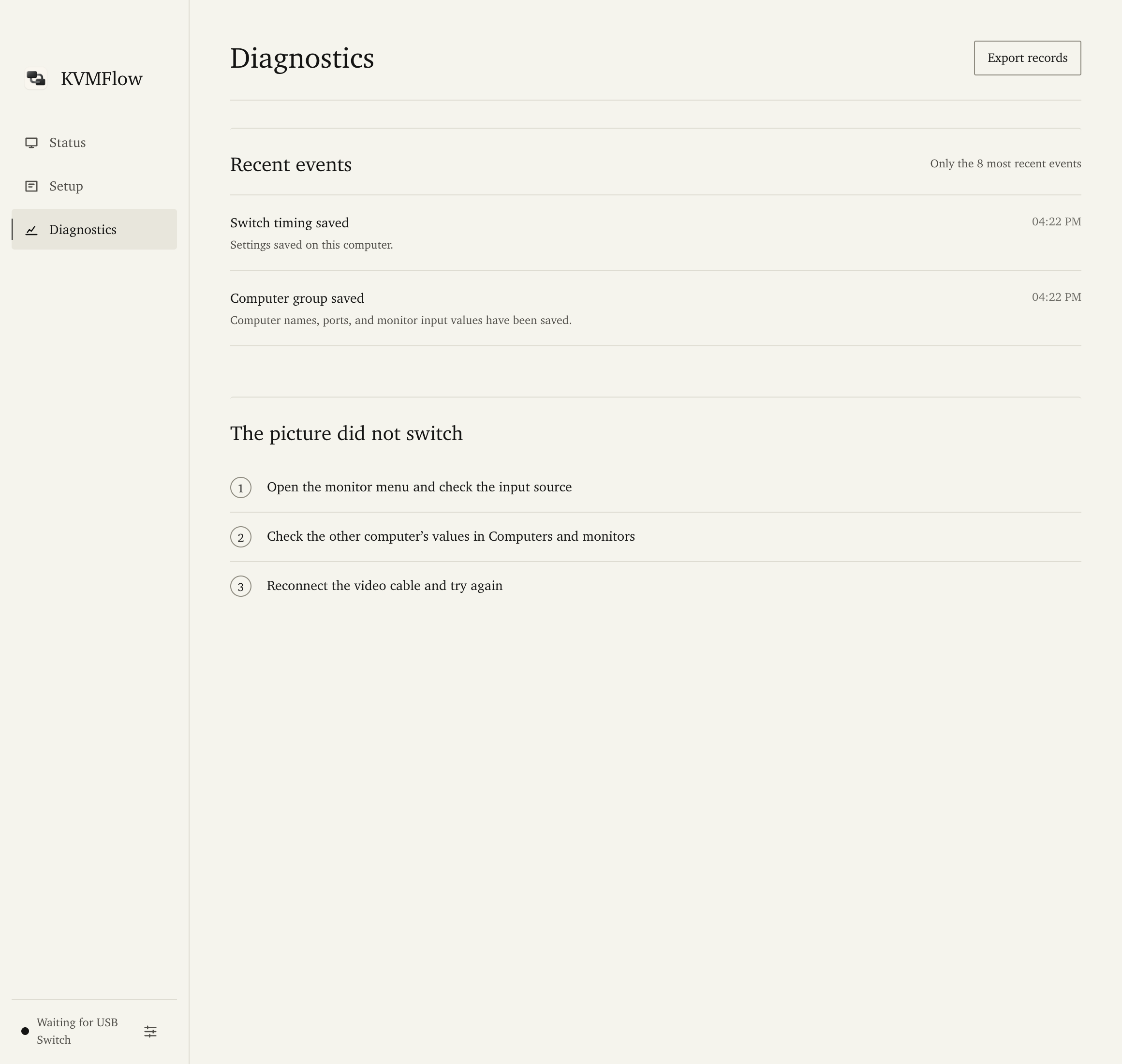
- What each screen actually shows and the input source in its OSD.
- Records exported from Diagnostics. Review them before sending for information you do not want to share.